Turn a Photo into a Tapestry Crochet Chart →
Choose a clear motif, set your swatch gauge, simplify yarn colors and check every row before printing.
 MotifDraft
Your pattern, your pace
Create a colorwork chart with adjustable stitch proportions and clear row directions.
Single-crochet colorwork grid · Flat rows or unturned rounds · Chart + row guide
Originals, made for making
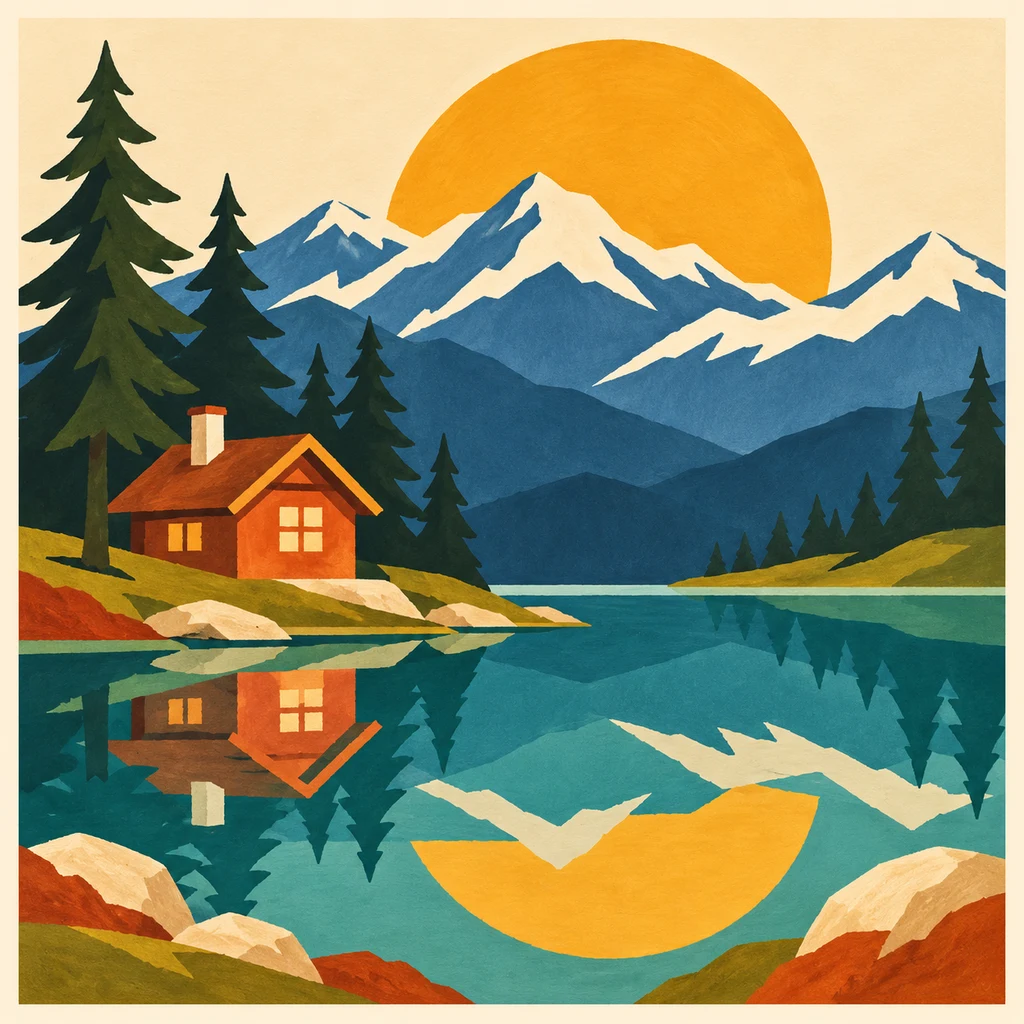
Follow each design from original artwork to an editable chart and an illustrated craft finish. Open the chart to adjust colors, edit cells and print your own version.
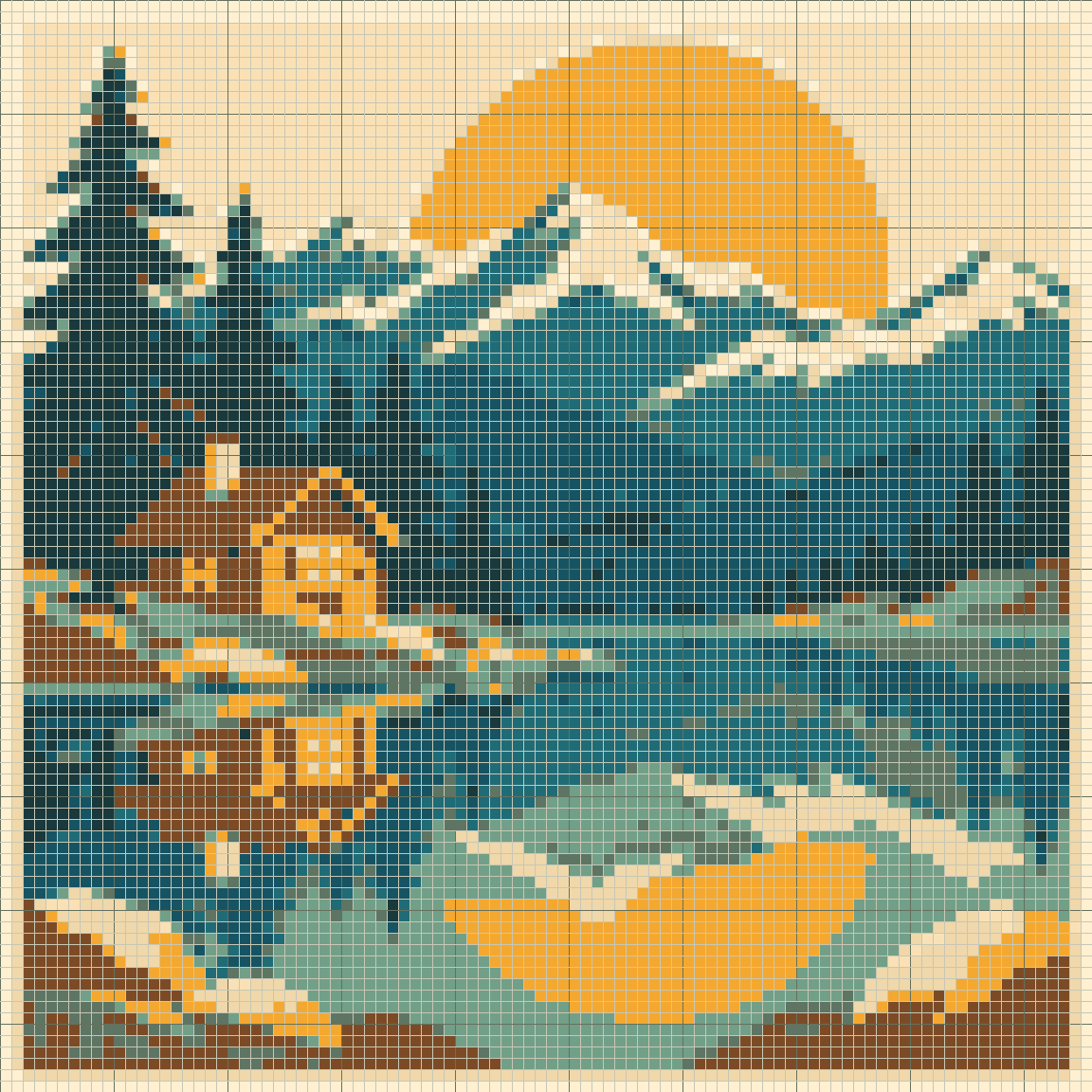
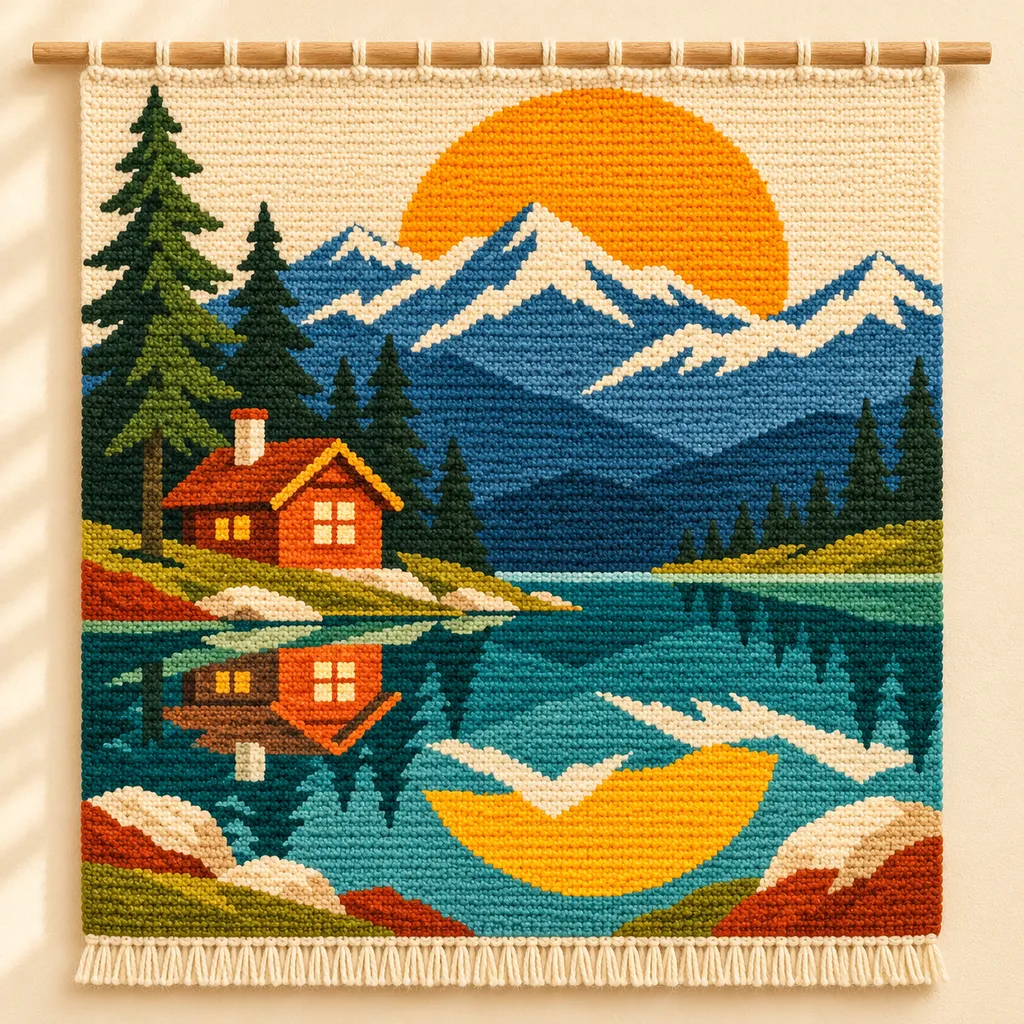
AI mockups illustrate a possible finish, not an exact rendering of the chart. The editable chart is actual tool output; physical making has not been tested.
Upload PNG, JPEG or WebP artwork, crop the subject and choose 8–160 columns and rows on Free, or up to 400 with Maker Plus. Images stay in your browser.
Start with a strong silhouette. Transparent cells remain unassigned: fill them with a background yarn color before working a continuous rectangle.
Width and height control the next generated or blank chart. To add space or crop existing artwork without regenerating it, use Resize existing canvas and review the preview.
Enter stitches and rows measured over 10 cm of your own single-crochet swatch. Keep image proportions calculates the row count from your width, cropped image and gauge before generation, so non-square stitches do not simply stretch the motif.
Measure a relaxed swatch made with your intended yarn, hook and tension. The editor accepts cell height-to-width ratios from 0.25 to 4. Generate again to apply changed measurements to an uploaded image; existing hand edits are not automatically resized.
Rows are rounded to whole stitches and must fit 8–160 on Free or 8–400 with Maker Plus. Turn off Keep image proportions to choose a deliberate stretch or manually sized chart. The design-area estimate excludes borders.
Choose a custom yarn palette, merge colors and review the selected row. Row 1 starts at the bottom. Set the first reading direction to match your working method.
The row guide lists consecutive color runs in working order, including unassigned cells. Run counts sum to the chart width.
Flat mode alternates reading direction each row. Unturned rounds keep the same direction. These modes do not calculate joins, increases or decreases.
Save an editable project, then print a color key, numbered chart sections and a complete row guide. Chart pages are enlarged square reference grids; the cover records your measured gauge and finished-size estimate.
This is a single-crochet colorwork chart, not a complete construction pattern. It does not determine yarn carrying, tension, joins, shaping, yarn length or three-dimensional amigurumi. Physical swatch validation is still required.
Add a name or short phrase with block lettering, preview its size and place it as editable cells. My projects keeps separate charts, notes, print settings and completed rows in this browser. Save a copy for a variation, or archive and restore older work.
Keep an editable JSON backup, choose A4 or Letter for PDF printing, download a PNG overview or export material counts as CSV. Make mode tracks completed rows; this browser also keeps one automatic draft per maker.
Choose a clear motif, set your swatch gauge, simplify yarn colors and check every row before printing.
Separate gauge problems from image detail, then simplify a tapestry chart without losing the motif.
Preview block lettering, fit it to your chart and preserve the result in any of the five makers.
Save local or cloud projects, keep editable backups and resume row progress across all five makers.
Pick the right export, match paper settings and review page boundaries before making your project.
Follow colors, row numbers and direction arrows, then compare the chart with your own single-crochet swatch.
Yes. Free includes local conversion and editing up to 160 × 160, plus PNG, CSV, JSON and basic PDF printing without an account. Maker Plus supports up to 400 × 400. Cloud saving requires sign-in; Free accounts can save 5 cloud projects.
Upload a photo, crop the subject and choose the grid dimensions and colors. Generate the pattern, then review and edit it before exporting.
Yes. Crop around the face, choose a small yarn palette and enter the gauge from your swatch. Review the eyes and outline after conversion. The result is a colorwork chart for your bag panel; handles, shaping and assembly instructions are not generated.
The row guide lists consecutive color runs in working order, including unassigned cells. Run counts sum to the chart width.
It produces a chart and ordered color runs. Construction, shaping and yarn-handling instructions remain your responsibility.
Your swatch may not have square stitches. Gauge changes the preview and size estimate. With Keep image proportions enabled, the next image generation also adjusts its row count to preserve the cropped motif’s shape.
Set the first direction and choose flat rows or unturned rounds. Follow the printed arrows and check against your actual working method.
Yes. Use up to 12 custom yarn colors, rename them to match your materials, and review color changes in each row.
No. Yarn, hook and tension affect the result. Make and measure a physical sample before a large project.